How Google Docs Version History Works (and How It Records Each Writing Session)
What Google Docs version history saves, how it groups your edits into separate writing sessions, and how to read, name, restore and copy versions.

Every Google Doc keeps a record of how it was written. Not just the final text, but when each change happened, who made it, and how the document grew from a blank page to what you see now.
Most people only open version history when something goes wrong. But it's worth understanding how it works, especially how it separates one writing session from the next. Here's what it saves, how it's organized, and how to use it.
What version history is
Version history is built into Google Docs. You don't turn it on. As you type, Docs saves your changes automatically, and those saves become the document's history.
To open it on a computer:
- Go to File → Version history → See version history, or
- Press Ctrl + Alt + Shift + H (Cmd + Option + Shift + H on Mac), or
- Click the Last edit link at the top right of the doc.
A panel opens on the right with a list of versions, newest at the top. Click any version and the doc on the left shows what it looked like at that moment, with the changes highlighted.
Two things to know up front:
- You need edit access. Viewers and commenters can't browse version history.
- It's a desktop feature. The Docs mobile apps don't offer the same history panel. Open the doc in a browser on a computer.
Two layers: the revision log and the version list
Version history is easier to understand once you know it has two layers.
1. The revision log. Under the hood, Docs records your edits as a long series of small revisions. Each one is an insertion or deletion of text (or a formatting change) with a timestamp. While you're typing, Docs saves every few seconds, so fast keystrokes get batched into one revision. This log is detailed enough to replay a document keystroke by keystroke.
2. The version list. Nobody wants to scroll through thousands of tiny revisions, so the panel you see groups them into readable entries. Each entry is a version: a timestamp, the names of the people who edited, and a snapshot you can open.
The version list is a summary of the revision log. The log is the full story.
How individual sessions are recorded separately
This is the part most guides skip. Version history doesn't lump everything together. It records your work in bursts that roughly match how you actually wrote.
A session becomes its own entry
When you sit down and write for a while, the edits from that stretch of work are grouped into a version. When you stop, close the tab, and come back later, the new edits start a new entry with a new timestamp.
So a doc written over three evenings will usually show at least three distinct entries, one for each sitting, each stamped with the time it happened. A doc written in one sitting usually shows one large entry, often with smaller versions tucked inside it.
What separates one session from another
Google doesn't publish the exact rules for how it groups revisions. In practice, a new entry tends to start when:
- There's a gap in editing. A pause, closing the doc, or coming back the next day.
- A different person starts editing. Each editor's work is attributed to them, and their name appears on the versions they touched.
- A version is named. Naming a version pins that point in the history (more on that below).
Sessions nest inside each other
Some entries have an expand arrow next to them. Click it and the entry opens into smaller, time-stamped versions inside it. That's how one long sitting can be summarized as one line but still let you jump to a specific point within it.
Each session shows who and when
Every entry lists the editors who made changes during it, and each editor gets their own color. When you open a version with Show changes on, additions and deletions are highlighted in that person's color. If two people edited at the same time, you'll see both names on the same entry.
Older history gets consolidated
Google says revisions may occasionally be merged. Versions are grouped and merged based on factors like the age of the file and the size of each version, partly to save storage. In practice that means recent work is shown in finer detail, and older sessions can get folded together over time.
If you want a specific moment to stay findable, name it.
What a session history looks like
Here's a simplified example of a doc written across three sittings:
| Entry in the panel | Editor | What happened | | --------------------------- | -------- | ------------------------------------------------------ | | Nov 7, 8:42 PM | You | Revised the conclusion, fixed typos | | Nov 6, 9:15 PM (expandable) | You | Wrote body paragraphs 2–4 over about an hour | | Nov 5, 7:30 PM | You, Sam | Outline and intro; Sam added two comments and a source |
Each sitting is its own row. The gaps between them are visible from the timestamps. Expanding the Nov 6 entry would show smaller versions from inside that hour.
One thing that stands out in any history: pasting. A paste is recorded as a single large insertion. A paragraph that appears all at once looks different from a paragraph that grows word by word, both in the version list and in the underlying log.
Replaying the full log
The version list is the summary. Some tools read the full revision log instead.
Draftback is the best-known example. It's a Chrome extension that replays a Google Doc's revision history like a movie. You can play, pause, rewind, and even watch at actual speed. It works on existing documents, not just new ones, and it shows charts of when and how much writing happened. Its Chrome Web Store listing says it's mostly used by teachers.
Because playback uses the raw log, it shows things the panel hides: exact pacing, pauses inside a session, deletions, and how each sentence was built.
Google also offers Show editors on some Workspace plans (Business Standard and above, plus Education Plus). Select text, right-click, and choose Show editors to see who changed that text and when.
Naming, restoring and copying versions
Name a version
In the version panel, click the three-dot More menu next to a version and choose Name this version. Named versions are easier to find, and naming helps keep a version from being merged into others. You can turn on Only show named versions to filter the list.
Google Docs allows up to 40 named versions per document.
Restore a version
Select an earlier version, click Restore this version, and confirm. Restoring doesn't erase anything. The current version stays in the history, so you can go back if you change your mind. If others are editing the doc, they'll see the restored content too, so give them a heads-up.
Make a copy
If you want an old version without changing the current doc, choose More → Make a copy. You'll get a separate document with that version's content. This is the safe way to compare drafts or pull back one section.
Delete history
If you own the doc and use a personal Google Account, you can delete unnamed versions (More → Delete history, or Delete this and older versions on a specific entry). This is permanent and can't be undone.
Tips for a clean, useful history
- Write in the doc. Drafting elsewhere and pasting in leaves you with one big insertion and very little history to fall back on.
- Name milestones. Name a version before a big rewrite, before sharing for feedback, and at the final draft.
- Use Make a copy before restoring if you're not sure. It changes nothing.
- Expand grouped entries when you're hunting for a specific change. It's often hiding inside a larger session.
- Use a computer. You won't get the full panel on mobile.
Where Duey fits
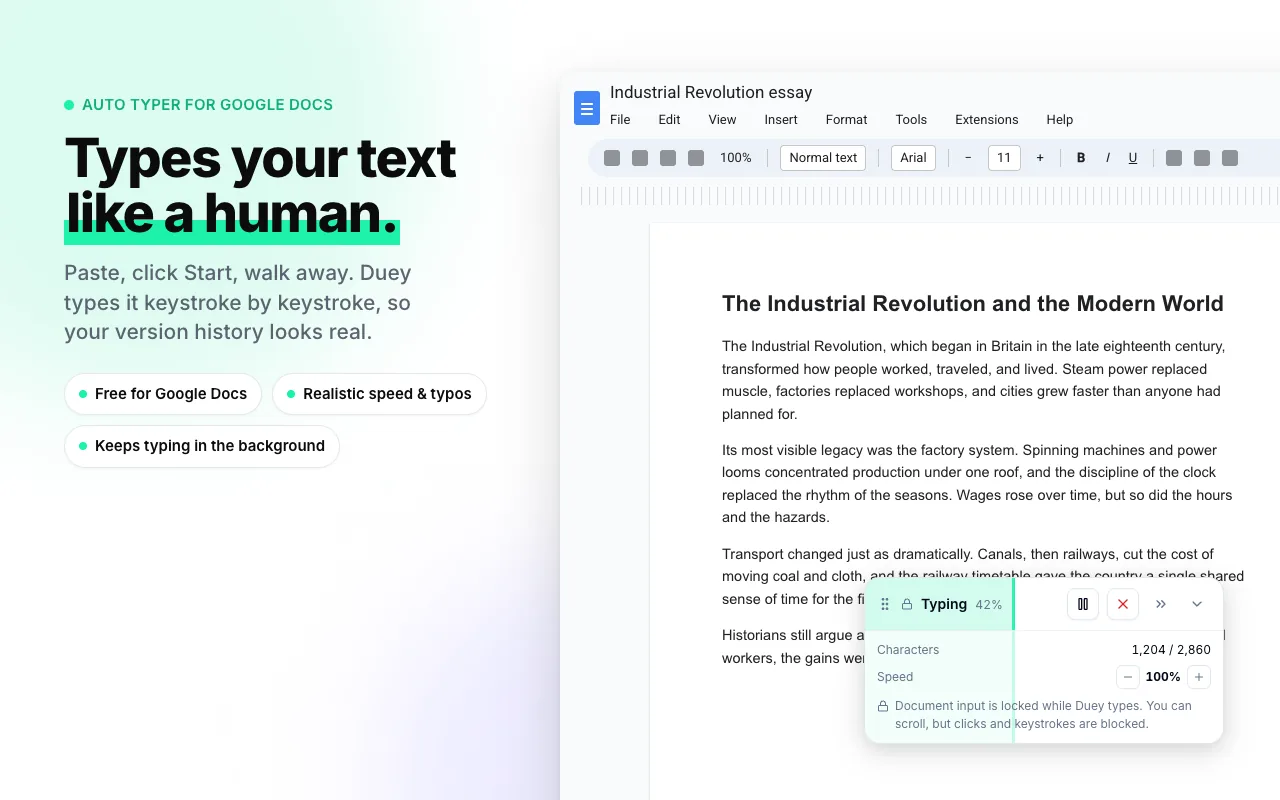
Duey types text into Google Docs for you, character by character, instead of pasting it in one block. With Duey Sessions (part of Duey Pro), typing runs in the cloud on a schedule, so it can continue after you close your laptop and be spread across more than one sitting.
If you're curious how that looks in version history, try it on a test doc and open the panel afterward. Get Duey Pro →
FAQ
Does Google Docs save every keystroke? Almost. Docs saves small revisions every few seconds while you type, so very fast keystrokes can be batched together. The full log is detailed enough to replay a document as it was written.
Why don't I see every edit in the version list? The panel groups revisions into versions, and Google may merge older revisions. Expand a grouped entry to see more detail, and name versions you want to keep distinct.
Can other people see my version history? Anyone with edit access can open it. Viewers and commenters can't.
Does version history show who made each change? Yes. Each version lists its editors, and changes are color-coded by person.
Can I see version history on my phone? Not in the same way. Open the doc in a browser on a computer.
Can I delete version history? Only if you own the doc and use a personal Google Account. Deletion is permanent.