Free · No account needed
Auto Typer for Google Slides
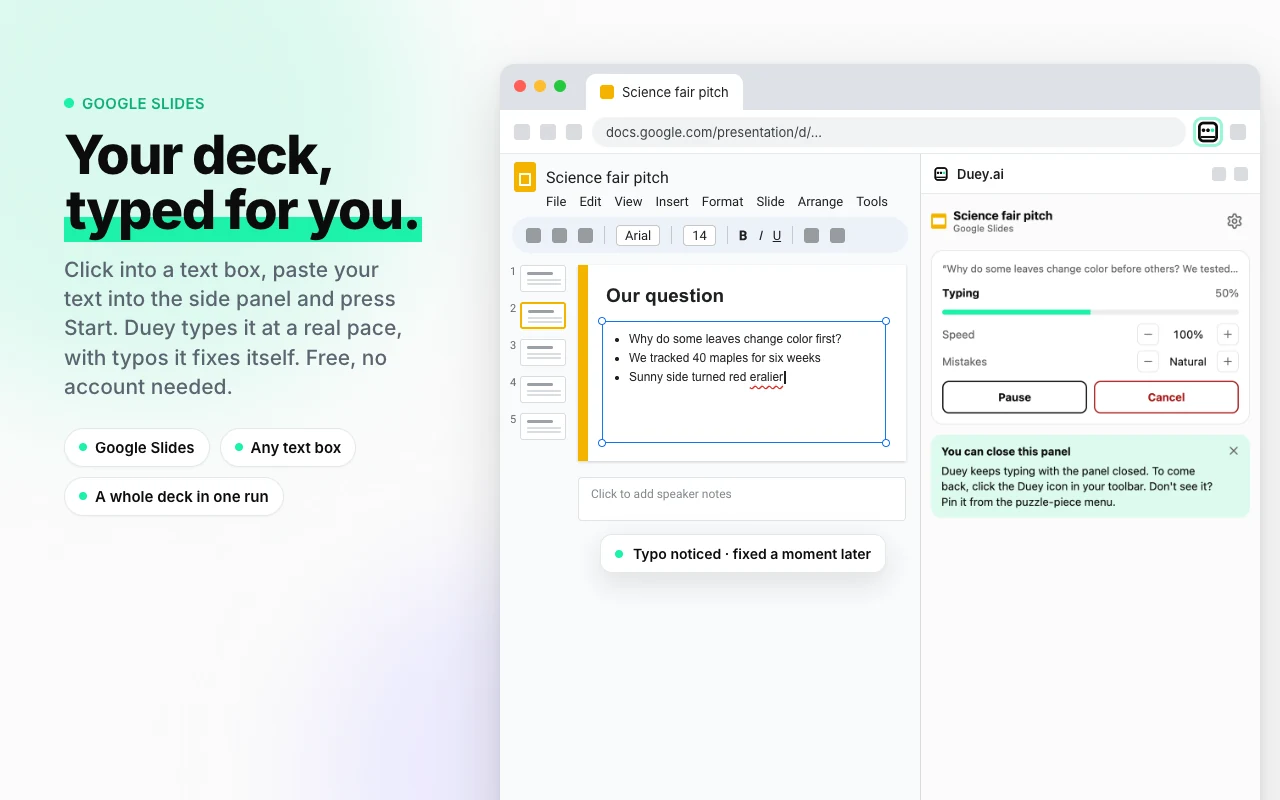
Click into a text box, paste your text and press Start. Duey types it into your slides at a real pace, makes typos and fixes them, and takes breaks along the way. One run can fill the whole deck.
Free in Google Slides · No account · Works on Mac, Windows and Chromebooks
How it works
Four steps, then Duey does the typing.
- 1
Add Duey to Chrome
Install the free extension. No account needed.
- 2
Open your deck and the side panel
Open the presentation in Google Slides and click the Duey icon in your toolbar. The panel opens beside the slide.
- 3
Click into a text box
Click inside the title or body box you want filled, so the cursor blinks. Duey waits until a box is selected.
- 4
Paste and press Start
Paste your text, pick your speed and mistakes, and press Start. Pause, slow down or stop any time from the panel.
Built for decks, not just docs
A whole deck in one run
Turn on Multi-block, paste each slide's text into its own block, then click where each one goes and press Enter. Duey moves from slide to slide and types each block in order.
Empty slides are fine
Blocks can go into a new slide’s “Click to add title” and “Click to add text” boxes. Duey gets into the box and types there.
Real pace, real typos
Your speed, mistakes and breaks settings apply in Slides, as in Docs. Duey makes typos and fixes them as it goes.
A version history that shows the work
Google Slides keeps its own version history. It fills in as Duey types, the same way it does when you type by hand.
Nothing on top of your slides
Duey lives in Chrome’s side panel. The labels you see while placing blocks are on your screen only and never added to the deck.
Tells you when it needs a click
Slides sometimes needs a click on the slide before Duey can move to the next block. The panel asks, and the toolbar icon can show “!” until you do.
Good to know
- Plain text in Slides. Bold, headings, lists and links are typed as plain text, and Duey shows a note if your text has formatting. Style the slide afterwards.
- Keep the tab open and active while Duey types.
- “Typing isn’t showing up”? Click into the text box so the cursor blinks, then press Resume.
- Sittings and Replay are Google Docs features. They aren't available in Slides.
- School and work accounts are fine. Duey types into whatever deck is open in your browser. Your Duey account is separate from the Google account that owns the deck.
- Using PowerPoint instead? Duey also types into PowerPoint for the web, the same way.
Duey Pro
Typing that reads as your own hand
Auto Typer Pro works in Google Slides too. It types at your own measured tempo, pauses to think, and fixes typos the way a person does.
Get Duey ProAlready subscribed? Add Auto Typer Pro to Chrome →See what Pro does →Questions
Is the auto typer free in Google Slides?
Yes. The free Duey extension types into Google Slides with your speed, mistakes and breaks settings, and Multi-block is free too. You don’t need an account.
Can it type into several slides in one go?
Yes, with Multi-block. Paste each part into its own block, click into the text box where each block goes and press Enter, then press Start typing. Duey moves between slides on its own and types each block in order.
How Multi-block works →Does it keep bold, bullets and headings?
Not in Slides. Text is typed as plain text there, and Duey shows a note before you start if your text has formatting, so you can style the slide afterwards.
Why did Duey stop and ask me to click the slide?
Google Slides sometimes needs a click on the slide before Duey can move on to the next block. Click the slide once and Duey continues.
Does it work with PowerPoint?
Yes, with PowerPoint files opened in Chrome (PowerPoint for the web). It works the same way as Google Slides, Multi-block included. It doesn’t type into the PowerPoint desktop app.
Auto Typer for PowerPoint →What do I need?
Chrome on Mac, Windows, Linux or a Chromebook. Nothing else for the free extension. Auto Typer Pro needs Duey Pro.
Paste, click Start, walk away.
Free in Google Slides · No account · Works on Mac, Windows and Chromebooks