Duey 4.0 and Auto Typer Pro 1.0: Duey Now Types on Any Website
The biggest Duey update yet: both extensions now type into text boxes on any website, from class discussion posts to application essays. Plus PowerPoint for the web, sittings, Replay and a new icon.

Duey 4.0 and Auto Typer Pro 1.0 are out on the Chrome Web Store, and the headline is simple: Duey now types on any website.
Until now, Duey typed into three places: Google Docs, Google Slides and Word Online. That covered most essays, but a lot of your writing never touches a document. Discussion posts go straight into your course site. Applications have their own essay boxes. Quizzes have short-answer fields. Emails, forms, chat messages. Now Duey can type all of it.
Type on any website
Open any page with a text box, open the Duey side panel, and click Pick a text box. Click the box, paste your text, and press Start typing. Duey types it with the same speed, typos and breaks you already use in Google Docs: in bursts, with mistakes caught and fixed a moment later.
It works on:
- Discussion posts and assignments on your course site
- Essay boxes on applications and portals
- Form answers, including Google Forms
- Email in your webmail
- Chat apps like Discord, Slack, WhatsApp and Teams
It's careful, too. It never presses Enter in a one-line box, never submits a form, types new lines in chat apps as Shift+Enter so a message isn't sent half-written, and never touches password or payment fields.
Type anywhere is free in Duey, with no account needed. Auto Typer Pro takes it further:
- Real keystrokes, so it works on the few sites that ignore the free typer.
- Multi-block across text boxes. An application with four short essays, or a form with a dozen answers? Pick a box for each block and Pro fills them one after another, on the same page. Nothing is submitted.
- Your own tempo, with the natural pauses Pro already uses in Google Docs.
Read more: Duey now types on any website
Here's everything else that's new.
PowerPoint for the web
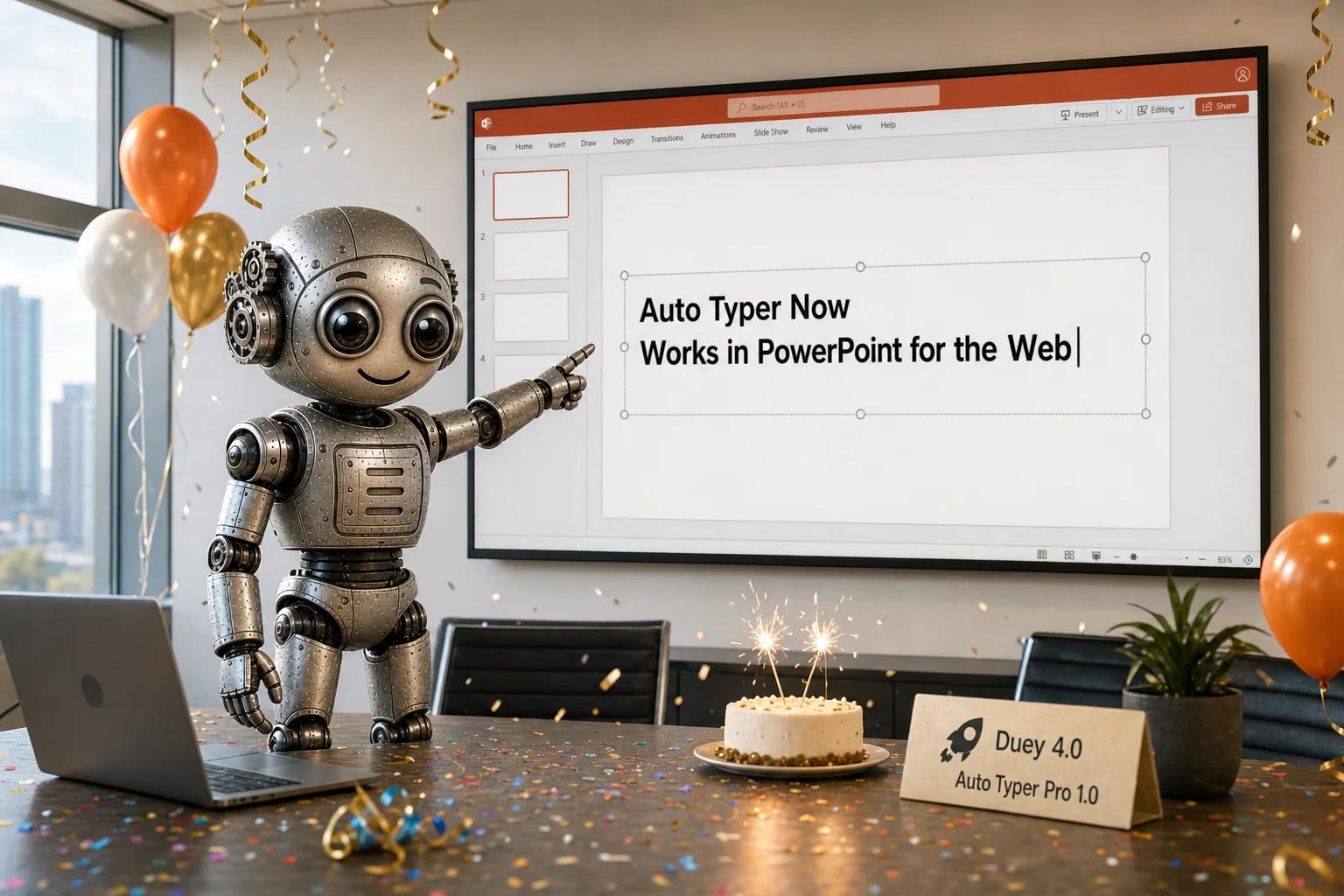
Duey now types into PowerPoint files opened in your browser, the same way it does in Google Slides. Click into a text box, press Start, and watch it fill. Multi-block works too: place blocks on different slides and Duey types each one into its box, in order.
Read more: Auto Typer now works in PowerPoint
Sittings: more than one Version History entry
Google Docs only starts a new Version History entry after about 30 minutes with no edits. Duey's short breaks are much shorter than that, so a long run used to show up as one big entry.
Sittings fix that. Turn on Write in 2 sittings and Duey splits your run at a paragraph end with one 35-minute break, so the doc shows two entries. Auto Typer Pro goes further: up to 4 sittings, with a break length you choose from 31 to 120 minutes.
Replay: see how a Google Doc was written
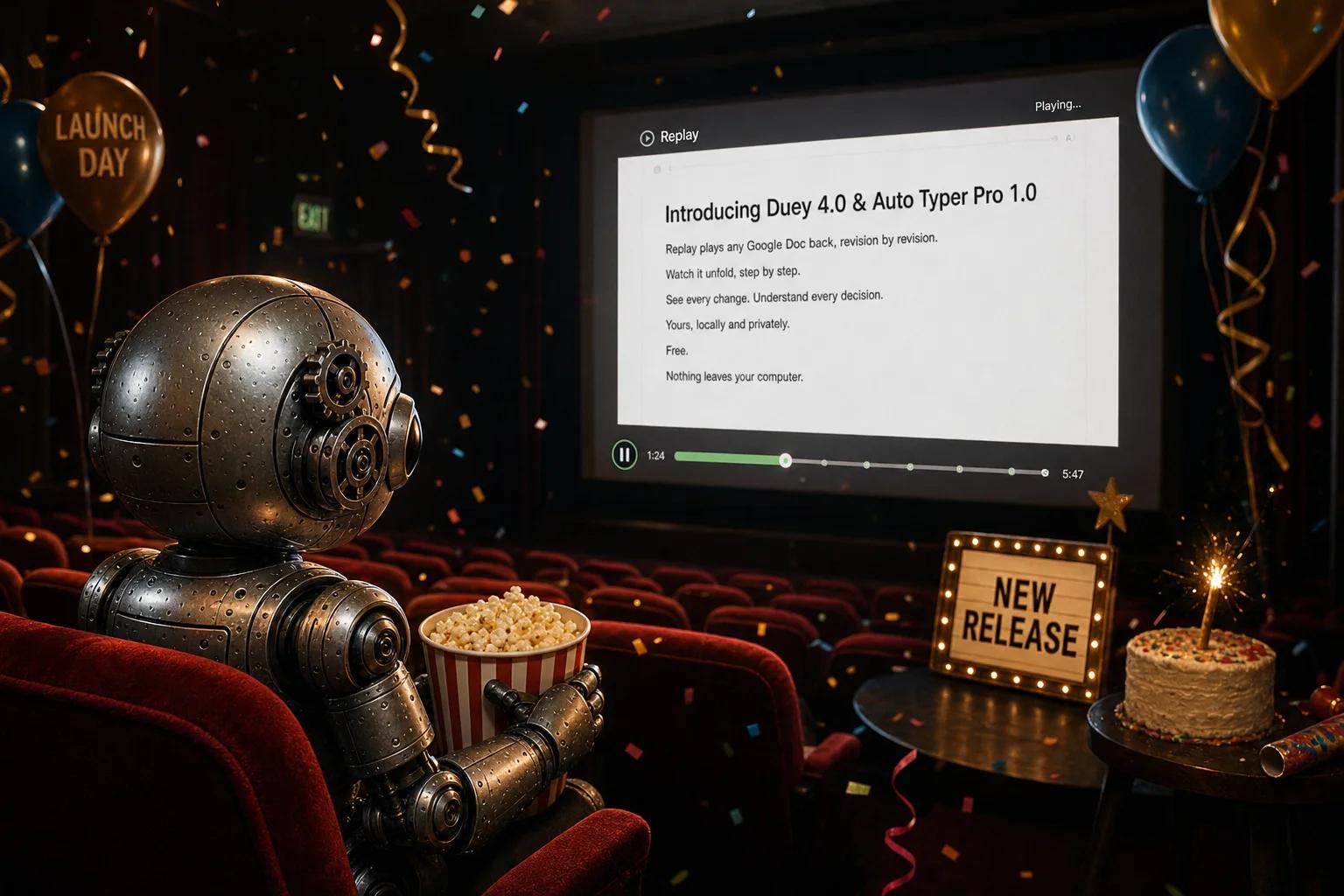
Click Replay this doc in the side panel and Duey plays the doc back, revision by revision, from its own Version History. You get a timeline with the Version History entries marked on it, a summary of writing time and edits, and a few plain facts about how the doc was written. It works on any Google Doc you can edit, typed by Duey or not, and nothing leaves your computer.
Read more: Replay any Google Doc
A new icon
Duey has a new icon: a keyboard key with three typing dots. If you'd rather keep the old graduation cap, go to Settings → Icon and pick Duey classic.
There's also a new, optional setting: Show progress on the Duey icon. With it on, the dots move while Duey types, turn amber when it's paused, show ! when a run needs you, and show a check when it's done. It's off by default, and with it off the toolbar icon never changes.
Also in this release
- Click into the document while paused. "Click where the text should go, then Resume" now works the way it says.
- Version History, explained. Before you start, Duey tells you how many Version History entries the run will make, and why.
- One-click refresh. A doc that was open before you installed or updated Duey now shows a Refresh tab button.
- Easier to read. Text, inputs and switches in the side panel meet WCAG AA contrast.
- Fixes late typos the way people do (Pro). A typo noticed a few characters later gets selected and typed over, instead of always arrowing back and retyping.
- Not working on a site? Tell us. A Send us a bug report link sits at the foot of the panel on any website. It tells us what kind of text box the page uses, never your text.
One thing is gone: the Humanize button that appeared over text boxes on other websites. The Humanizer is still at app.duey.ai, and Duey can now type its output into those same boxes for you.
Getting the update
Chrome updates extensions on its own over a few days. To get it now, open chrome://extensions, turn on Developer mode and click Update. When you next open the side panel, a short "What's new" card walks you through the changes.
New to Duey? Add Duey to Chrome for free, open any page with a text box, and try it. For real keystrokes, Multi-block on websites, your own typing tempo and up to 4 sittings, try Duey Pro.
As always, most of this came from your feedback. Keep it coming.